
How to Prevent Moiré in Screen Printing — OmniSeps Has It Built In
Moiré ruins halftone prints. OmniSeps comes with built-in anti-moiré techniques for Simulated, Grayscale, and CMYK separations — no manual setup needed.
8 Mei 2026
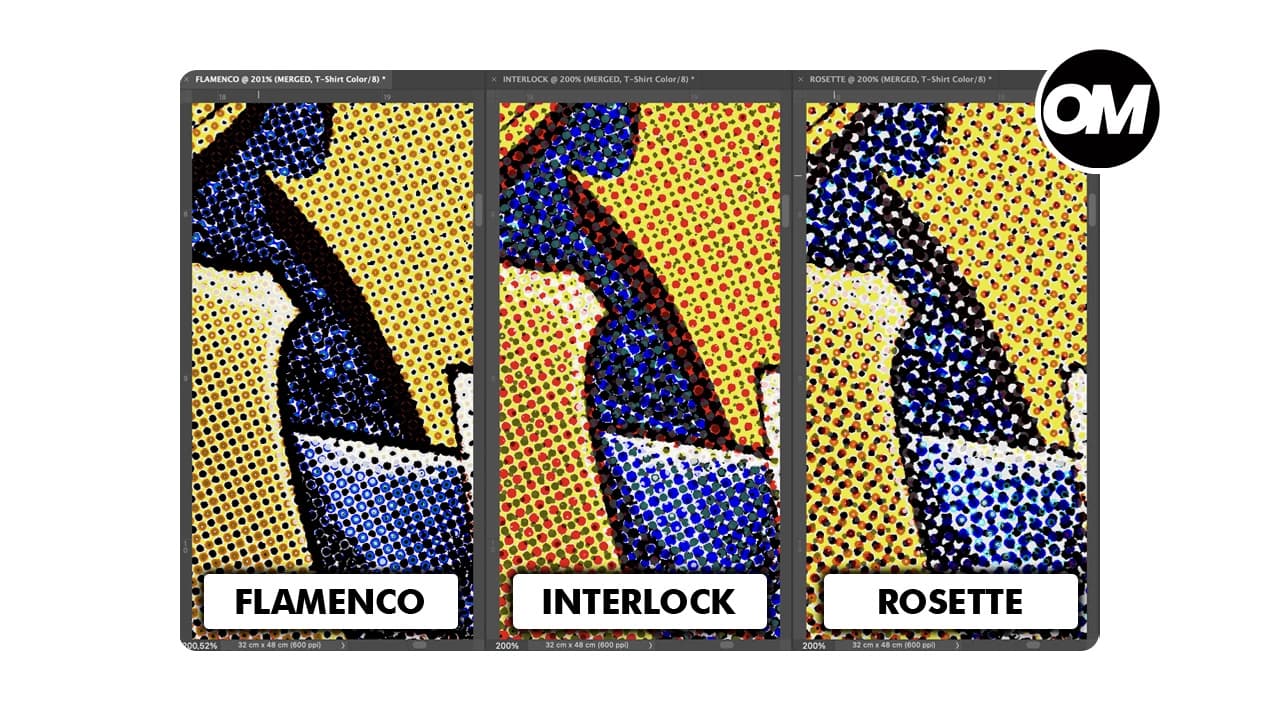
If you've ever printed a halftone design and seen a strange wavy, checkered, or rippling pattern appear on the shirt — one that was never in the original artwork — you've experienced moiré.
It's one of the most common and most frustrating problems in screen printing. And most of the time, printers don't even know it's coming until it's already on the substrate.
What Is Moiré and Why Does It Happen?
Moiré is an optical interference pattern that occurs when two or more repetitive dot grids overlap at conflicting angles. In screen printing, this happens during bitmap conversion — when each color separation is turned into a halftone dot pattern. When those patterns don't work together, they clash. The result is a visible moiré pattern that makes your print look muddy, unprofessional, and wrong.
The more colors in a separation, the more dot grids are stacked on top of each other — and the higher the chance of interference. High color count separations are especially vulnerable.
The Standard Fix — And Why It's Not Enough
The traditional solution is to manually assign specific screen angles to each separation. The problem? You need to know which angles to use, how each color interacts with the others, and whether your specific separation style needs a different approach.
Most printers either guess, copy settings from the internet, or just accept moiré as part of the process. None of those are good options.
How OmniSeps Solves It — Automatically
OmniSeps includes a built-in anti-moiré system. When you convert your separations to bitmap, you choose your process and your technique — OmniSeps handles the rest behind the scenes.
No manual setup. No trial and error. No wasted prints.
Anti-Moiré Techniques Available in OmniSeps
OmniSeps supports three separation processes, each with its own set of anti-moiré techniques:
- Simulated — Flamenco, Rosette, Interlock, Openlock
- Grayscale — Flamenco, Rosette, Interlock, Openlock
- CMYK — Rosette, Flexo
What Each Technique Does
Flamenco
The most aggressive prevention. No repeating geometric structure means moiré has nothing to lock onto. Best for high-color-count separations where interference is most likely.
Rosette
The industry standard. Dots naturally cluster into a rosette formation — the clean, organized pattern that professional printers aim for. If you want one technique that just works across any separation, this is it.
Interlock
Two separate screen angles working together. Instead of competing, each angle locks into the gaps of the other — eliminating moiré through structured opposition.
Openlock
All screens run at the same angle, with some running inverted. This creates an open dot arrangement where screens reinforce rather than conflict — clean laydown, minimal moiré.
Flexo (CMYK only)
Standard CMYK isn't tuned for flexographic printing. Flexo mode adjusts the technique specifically for flex print conditions where dot gain is higher and ink spread is less predictable.
Important: Keep Channel Names Intact Before Bitmap Conversion
This is a step many users miss. OmniSeps' anti-moiré presets work by reading the name of each channel to assign the correct angle and settings automatically. The preset recognizes names like Red, Blue, Green, Cyan, Magenta, Yellow, Black, Highlight, and others — and applies the right configuration to each one.
Do not rename or modify channel names before running bitmap conversion. If a channel name doesn't match the expected names, the preset can't assign the right settings for that channel and will fall back to a default — which may cause moiré on that specific color.
The recognized channel names correspond to the standard OmniSeps color set: Red, Blue, Green, Orange, Pink, Yellow, Cyan, Magenta, Purple, Lime, Mint, Brown, Flesh, Highlight, Sky Blue, Gray, Black, and Base White.
After bitmap conversion is complete, you're free to rename channels to whatever your workflow or client requires. The conversion is already locked in — renaming after the fact doesn't affect it.
Why This Matters for Your Shop
Moiré isn't just an aesthetic problem — it's a credibility problem. A print that looks wrong reflects badly on your shop even if everything else in the process was perfect.
OmniSeps gives you professional-grade moiré prevention built directly into your Photoshop workflow. The same techniques used by experienced separation artists are now available with a single dropdown selection.
Ready to Print Without Moiré?
OmniSeps is a Photoshop plugin built specifically for screen printing separation. The anti-moiré technique system is one of many features included — alongside full CMYK, Simulated, and Grayscale separation workflows, bitmap halftone conversion, and more.
FAQ
What is moiré in screen printing?
Moiré is an unwanted pattern that appears when halftone dot grids overlap at conflicting angles during printing. It shows up as a wavy, checkered, or rippling visual interference pattern on the final print — and it's not fixable after the fact.
How do I prevent moiré in screen printing?
The most reliable way is properly calibrated halftone screen angles for each color separation. OmniSeps automates this entirely with built-in anti-moiré technique presets — no manual angle entry required.
Do I need to do anything to my channels before running bitmap conversion?
Yes — keep your channel names intact. OmniSeps reads the channel name to assign the correct anti-moiré settings. If you rename a channel before conversion, the preset won't recognize it and will use a default setting instead. Rename channels only after bitmap conversion is complete.
What channel names does OmniSeps recognize?
The standard OmniSeps color names: Red, Blue, Green, Orange, Pink, Yellow, Cyan, Magenta, Purple, Lime, Mint, Brown, Flesh, Highlight, Sky Blue, Gray, Black, and Base White. Channels with these names — or names that start with these — are automatically assigned the correct settings for the chosen technique.
What is the difference between Interlock and Openlock?
Interlock uses two different screen angles that lock into each other's gaps, eliminating conflict through structured opposition. Openlock uses a single angle for all screens but runs some inverted, creating a more open dot arrangement with less ink buildup.
Which technique should I use?
Rosette is the most widely used and works well across most separations. Flamenco is the most aggressive option for high-color-count jobs. Interlock and Openlock offer different dot structures for specific printing styles. Try each and see what works best for your press and substrate.
Do I need OmniSeps to use these techniques?
Yes. These anti-moiré presets are built into OmniSeps' bitmap conversion workflow and are not available as standalone tools.
Try OmniSeps free for 15 days
Automatic color separation for Photoshop & Illustrator. No credit card required.
Claim Free TrialRelated articles
Simulated Process Screen Printing Separation — S1 and S2 in OmniSeps
One click and your full simulated process separation is built automatically. S1 for standard color range, S2 for extended palette with warm tones and skin tones. Fine-tune per channel with built-in adjustment tools.
OmniSeps — The Modern Screen Printing Separation Plugin for Photoshop
OmniSeps is a modern Photoshop separation plugin built on UXP — fast, always auto-updated, and covering the full screen printing workflow from vector separation to CMYK, simulated process, grayscale, and DTF halftone.
Grayscale Screen Printing Separation — Grayscale 1 and Grayscale 2 in OmniSeps
Learn how OmniSeps Grayscale 1 and Grayscale 2 separate artwork by luminance into standardized gray ink channels — and when to choose 6 channels vs 8 for smoother tonal reproduction.
Color Separation for Screen Printing — Works With Vector, Raster, or Both
Automatic color separation for screen printing in Photoshop. Works with vector, raster, or mixed layers — with built-in ink order sorting and auto trapping.