
Manual Color Separation in OmniSeps — Full Control, One Color at a Time
Learn when and how to use OmniSeps Manual Color Separation — the precision tool for vector plus raster workflows and supplementing S1 separations with missing color detail.
9 Mei 2026
Most separation tools in OmniSeps are automatic: run the process, get the channels. That is exactly what you want when your artwork fits the standard workflow. But not every file does.
Some projects mix vector elements with raster artwork. Some designs have layers that need to be handled individually. Some jobs require the person setting up the file to decide exactly which colors get separated, in which order, from which specific layer. For those situations, OmniSeps includes a Manual Color Separation system — a library of 18 individual color actions that give you complete, hands-on control over every channel you build.
Why Manual Separation Exists
Automatic separations like S1 and S2 analyze your raster artwork and produce all channels in one pass. That works well for straightforward raster files. But not every project is straightforward.
Two situations come up regularly where Manual is the right tool:
After vector separation — When your file mixes vector and raster artwork, the vector elements are typically handled through their own separation workflow first. Once those channels are in place, the raster portion still needs to be separated. Rather than running an automatic process that might conflict with the existing channel structure, Manual lets you work through each raster layer deliberately — selecting the layer, picking the color, building the channel — so the final output stays clean and organized.
As a supplement to S1 — Automatic separation does an excellent job across most color ranges, but some designs have colors that come out less detailed than expected. A specific orange, a particular flesh tone, a subtle green — sometimes one color in the artwork needs more separation work than the automatic process gave it. In those cases, you do not need to redo the entire separation. Select the relevant layer, click the corresponding color in Manual, and add a precise channel for that color on top of the existing separation. It fills the gap without touching anything else.
The Color Library — 18 Colors
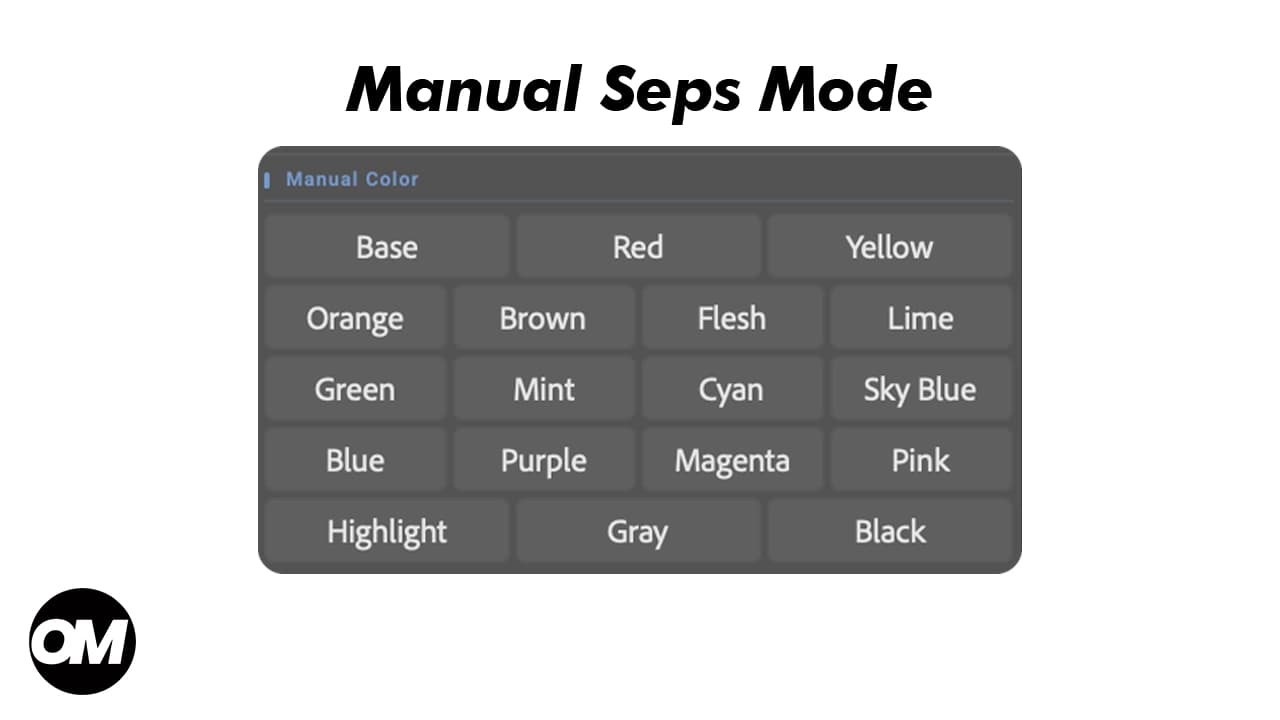
Manual separation includes 18 colors organized in the panel:
Underbase: Base
Core colors: Blue, Sky Blue, Purple, Red, Orange, Brown, Flesh, Pink, Magenta, Mint, Cyan, Green, Lime, Yellow
Special channels: Highlight, Black, Gray
Each button extracts only pixels of that color range from the currently selected layer. You pick the layer, you pick the color — the channel is built and added to the Channels panel immediately.
The palette covers the full standard ink range used in screen printing, from the most common colors to the supporting tones that make complex artwork printable.
Smart Channel Numbering
One practical strength of Manual separation is how it handles the same color appearing across multiple channels. If RED already exists and you click Red again on a different channel, OmniSeps creates RED 2. Click again and you get RED 3. Existing channels are never overwritten.
This means you can work through your design channel by channel, extracting the same color from as many sources as you need, and every channel stays distinct and organized.
Layer Requirements
Manual separation checks the active layer before running:
- A layer must be selected — if nothing is active in the Layers panel, the process stops
- Layer name must not be “Layer 1” or “Layer 2” — these names are reserved for internal processing; rename your layer before running
Unlike automated separations, Manual does not enforce single-layer or raster-only rules — you are managing the workflow yourself and are responsible for what is selected.
Fine-Tuning After Separation
Every channel created by Manual separation can be refined with the full OmniSeps adjustment toolkit. Select the channel in the Channels panel and apply:
- Ink+ / Ink- — increase or reduce overall ink density
- Tone+ / Tone- — cut shadow detail or pull back highlights
- Choke / Spread — tighten or expand the channel edge
- Levels / Brightness & Contrast — open Photoshop’s native dialogs for precise tonal control
This is especially useful in the supplement use case: after adding a Manual channel to fill a gap in an S1 separation, the adjustment tools let you match its density and edge behavior to the surrounding channels.
Frequently Asked Questions
What is the difference between Manual and S1/S2 separation?
S1 and S2 automatically produce all channels in one pass. Manual gives you full control — you choose which colors to extract, from which layers, and in what order. Use S1/S2 for standard raster files; use Manual when you need to supplement an existing separation or handle a mixed vector and raster file layer by layer.
Can I separate the same color from multiple layers?
Yes. OmniSeps auto-numbers each new channel if one already exists — RED, RED 2, RED 3, and so on. You can extract the same color from as many layers as you need without overwriting anything.
Can I use Manual to fix a color that came out wrong in S1?
Yes. Select the relevant layer, click the color button for the channel you want to add, and the new channel is created independently. You can then delete the original channel if needed and replace it with the Manual result.
What does the Base button do?
Base creates two channels at once: BASE WHITE (underbase) and GRAY, derived from the luminance of the active layer. It is the starting point for any design that needs an underbase and a gray tone channel.
Conclusion
Manual Color Separation is not a shortcut — it is the precision option. Whether you are finishing the raster side of a vector plus raster project or supplementing an S1 separation with a color that needed more detail, Manual gives you exactly the control you need without touching anything you did not intend to change.
Try OmniSeps free for 15 days
Automatic color separation for Photoshop & Illustrator. No credit card required.
Claim Free TrialRelated articles
Color Separation for Screen Printing — Works With Vector, Raster, or Both
Automatic color separation for screen printing in Photoshop. Works with vector, raster, or mixed layers — with built-in ink order sorting and auto trapping.
Simulated Process Screen Printing Separation — S1 and S2 in OmniSeps
One click and your full simulated process separation is built automatically. S1 for standard color range, S2 for extended palette with warm tones and skin tones. Fine-tune per channel with built-in adjustment tools.
CMYK Separation with GCR Method — How OmniSeps Omni CMYK Works
Learn how OmniSeps Omni CMYK separates full-color artwork into 7 press-ready channels using the GCR method — including underbase white and highlight — directly in Photoshop.
OmniSeps — The Modern Screen Printing Separation Plugin for Photoshop
OmniSeps is a modern Photoshop separation plugin built on UXP — fast, always auto-updated, and covering the full screen printing workflow from vector separation to CMYK, simulated process, grayscale, and DTF halftone.