
No More Guessing Ink Colors — OmniSeps Generates Your Mixing Reference Automatically
OmniSeps reads every channel in your separation and generates a visual color swatch reference sheet automatically — accurate colors, full Pantone names, ready for ink mixing and press handoff.
8 Mei 2026
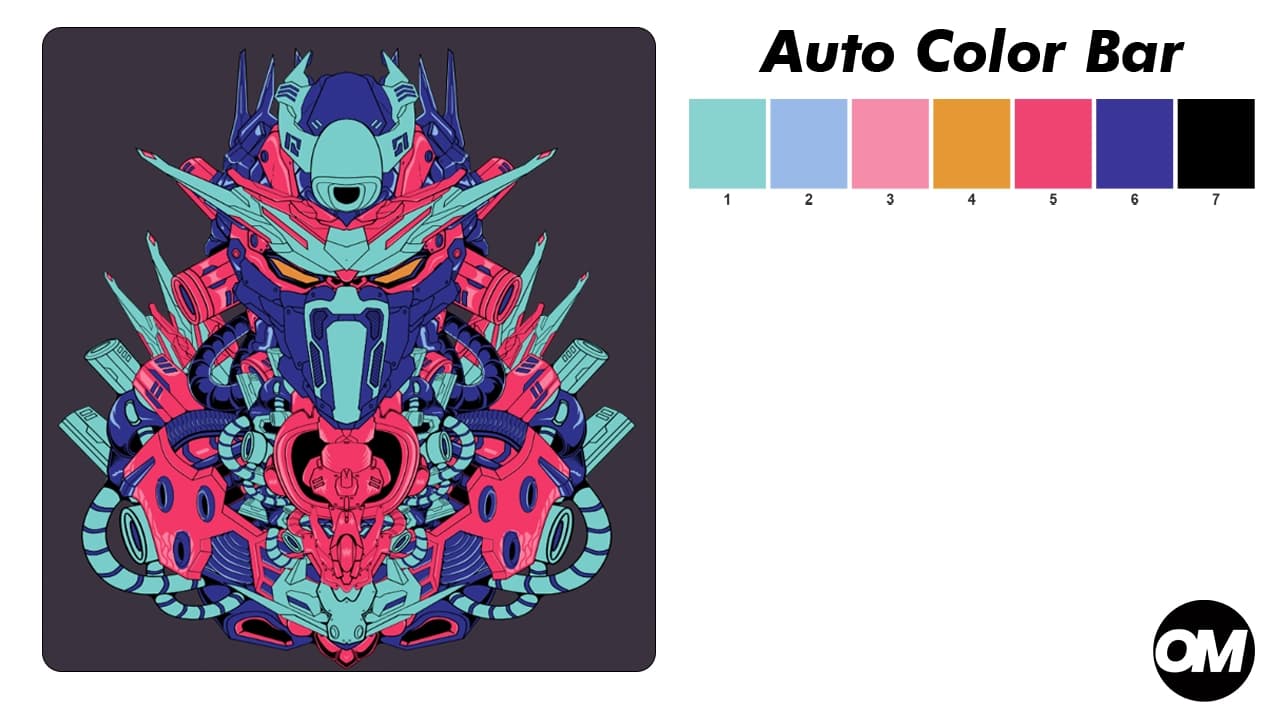
One of the most common bottlenecks in a busy screen printing shop happens before the press even runs: the person mixing ink doesn't know exactly which colors are in the job. They're reading channel names off a screen, writing them down, trying to match something visual. Someone calls across the shop. Someone opens the wrong file. Someone mixes the wrong shade.
OmniSeps eliminates that problem with one click.
What Color Bar Does
After you finish your separation in OmniSeps, Color Bar reads every channel in your document and generates a brand-new reference sheet — a clean, visual layout showing every ink color as a swatch, numbered in order, with the full color name below it.
The result is a document your press operator or ink mixer can actually use. No more digging through the Channels panel. No more verbal handoffs. Every color in the job, laid out clearly, in the correct order.
The Real Problem It Solves
In most shops, color information lives inside Photoshop — in the Channels panel, in the separation file, on the designer's machine. The person who needs that information most — the one mixing ink or loading screens — often has no clean way to get it.
What usually happens: someone screenshots the Channels panel, pastes it into a chat, and hopes the other person can read it. Or they write color names on a piece of paper. Or they just ask verbally and something gets lost.
Color Bar makes this handoff clean. One document, all the colors, ready to share.
For shop owners: you can review every ink color before the job goes to press without opening the separation file. See the colors, confirm the order, sign off.
For employees mixing ink: instead of interpreting a list of channel names, you have an actual visual reference. Swatch, number, name. Mix and go.
For busy production environments: Color Bar becomes part of the job file. Every job that leaves the design station comes with a color reference attached.
OmniSeps Reads the Color From Every Channel
This is what makes Color Bar actually useful: OmniSeps doesn't ask you to pick colors or enter values manually. It reads the color directly from every channel in your document — all of them, automatically.
Whatever channels are in your separation, OmniSeps pulls the accurate color data from each one and renders it as a true-to-color swatch in the reference sheet. One document, every ink color, no manual input.
This matters more than it sounds. Manual color references go out of date. Someone edits a channel, the reference sheet doesn't get updated, and the mixer is working from wrong information. Because OmniSeps generates the Color Bar directly from the live document, what you see is always what's actually in the file.
Pantone Colors Display With Full Accuracy
If your separation uses Pantone spot colors, OmniSeps reads directly from an official Pantone database. The color swatch is accurate, and the name displays exactly as it should — PANTONE Blue 072 C, not "Blue 072", not "072 C", not anything abbreviated or modified.
This matters on the shop floor. Ink mixers work from Pantone names. If the name is wrong or incomplete, the wrong ink gets pulled. One missing word in a Pantone name is the difference between the right color and a reprint.
OmniSeps keeps the full Pantone name intact, every time, directly from the official source.
Works Alongside Your Full OmniSeps Workflow
Color Bar is one part of a complete workflow inside OmniSeps. Once your separation is done — whether you came from an OmniChange vector workflow or a manual layered Photoshop file — Color Bar is the last step before the job goes to press.
Run your separation. Run Color Bar. Hand off.
If you're using OmniChange to prepare your vector artwork, the colors coming into Photoshop are already sorted light to dark by OmniChange. Color Bar then documents exactly those colors so your mixing room knows what's coming before the job arrives.
What the Color Bar Looks Like
The output is a Photoshop document — clean, white background, color swatches laid out in a horizontal row. Each swatch is large enough to read clearly. Below each swatch is the channel number and the full color name.
The numbering matches the channel order in your separation, so the mixer knows which color is first on press, which is second, and so on. Order matters in screen printing — printing sequence affects how colors interact — and Color Bar preserves that sequence visually.
FAQ
Who is Color Bar designed for?
Press operators, ink mixers, and shop owners who need a clear, visual color reference before going to press. It's the bridge between the separation and the mixing room.
Does OmniSeps automatically detect the colors or do I need to enter them manually?
Automatically. OmniSeps reads the color data directly from every channel in your document. You don't input anything — it reads, renders, and builds the reference sheet for you.
Does it work with Pantone colors?
Yes. OmniSeps includes an official Pantone color database. Pantone channels are displayed with accurate color swatches and their full, unmodified Pantone names — exactly as they appear in the Pantone library.
What if I edit a channel after generating the Color Bar?
Regenerate it. Because Color Bar reads directly from the live document, running it again after any change gives you an up-to-date reference. It takes seconds.
Do I need to do anything extra to generate the Color Bar?
No. Run your separation in OmniSeps, then click Color Bar. It reads all your channels and creates the reference document automatically.
What channels are included in the Color Bar?
All channels from your separation. Utility channels like T-Shirt Color and registration marks are excluded automatically — only your ink colors appear.
Can I print the Color Bar?
Yes. The Color Bar is a standard Photoshop document. Print it, export it as PDF, or share it however your shop prefers — digitally, printed, attached to the job file.
What's the correct way to share the Color Bar with my press team?
However your shop communicates. Export as PDF and send via chat, print a physical copy for the press room, or keep it open on a second screen during mixing. The format is flexible.
Try OmniSeps free for 15 days
Automatic color separation for Photoshop & Illustrator. No credit card required.
Claim Free TrialRelated articles
Turn Any Artwork Into a Halftone for DTF and DTG Printing — Automatically in Photoshop
Want your DTF and DTG prints to look hand-screened? OmniSeps converts any PNG artwork into a customizable halftone — frequency, angle, and dot style all yours to control.
Manual Color Separation in OmniSeps — Full Control, One Color at a Time
Learn when and how to use OmniSeps Manual Color Separation — the precision tool for vector plus raster workflows and supplementing S1 separations with missing color detail.
Color Separation for Screen Printing — Works With Vector, Raster, or Both
Automatic color separation for screen printing in Photoshop. Works with vector, raster, or mixed layers — with built-in ink order sorting and auto trapping.
Grayscale Screen Printing Separation — Grayscale 1 and Grayscale 2 in OmniSeps
Learn how OmniSeps Grayscale 1 and Grayscale 2 separate artwork by luminance into standardized gray ink channels — and when to choose 6 channels vs 8 for smoother tonal reproduction.