
Registration Marks for Screen Printing — Automatic, Numbered, and Direction-Aware
Automatic registration marks for screen printing films — calculated from your design, auto-numbered, and direction-aware for any film orientation.
9 Mei 2026
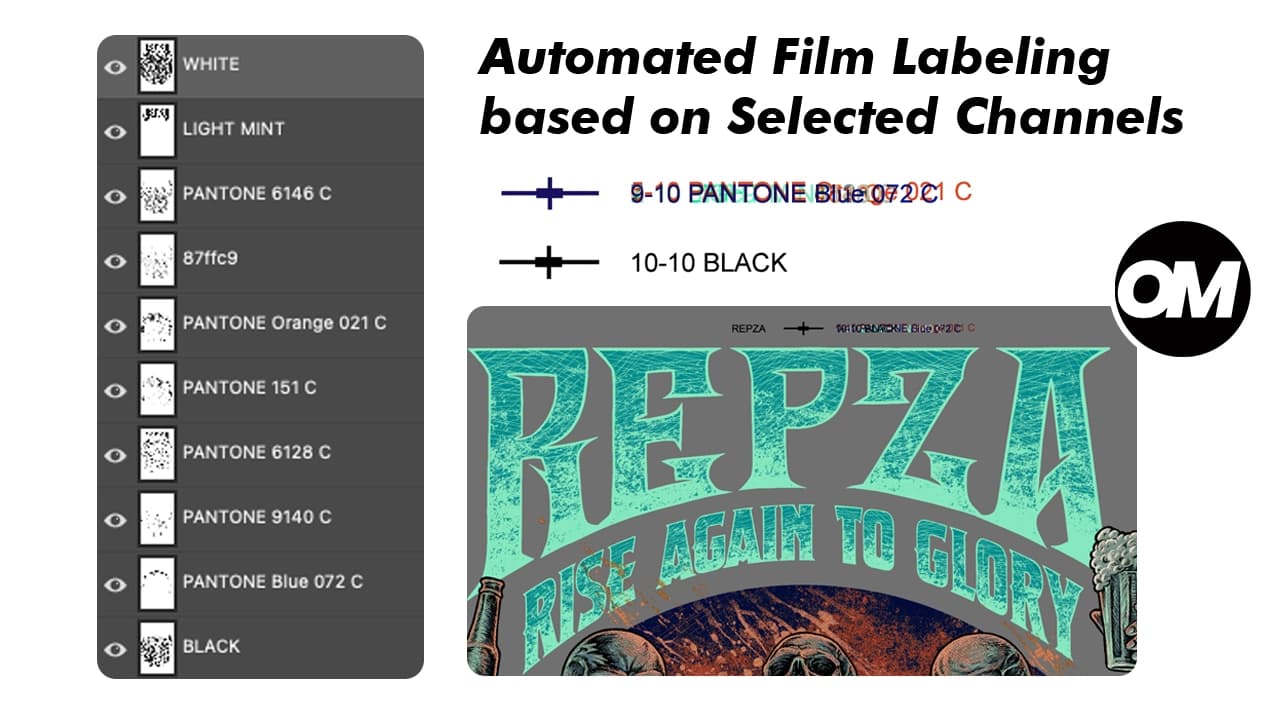
Misregistration is one of the most common causes of a ruined print. Colors that should align perfectly end up shifted — a red that bleeds past its border, a white underbase that peeks out from underneath. In multi-color screen printing, every screen has to land in exactly the right place, every print.
Registration marks are how you make that happen. OmniSeps puts them on your spot channels automatically — calculated from your design, auto numbered or named for alignment, and direction-aware for any film orientation.
What Registration Marks Do
Registration marks are reference points placed outside the design area on each film. When all your films are stacked and aligned using those marks, every color lands in the correct position on press.
Without registration marks — or with marks placed inaccurately — you're guessing at alignment. Even a 1mm shift on one screen is visible in the final print.
How OmniSeps Places Marks
OmniSeps calculates the mark position based on your actual design layer — the height and placement of your artwork determines where the marks go. This means marks are always positioned relative to the real design, not an arbitrary canvas boundary.
For positioning, OmniSeps reads your Photoshop ruler. If you've set a custom ruler position, marks will be placed at that ruler position — giving you full control over exactly where marks land on the film. If no ruler is set, OmniSeps defaults to the center of the document automatically.
This means you can place marks precisely where your exposure unit or press registration system expects them — just set the ruler in Photoshop before running Mark.
Each mark also comes with automatic numbering. Every spot channel gets its own number, so when you're handling multiple films on the press, you always know which film corresponds to which color — no manual labeling, no mix-ups.
4 Directions — For Every Film Orientation
OmniSeps offers four mark directions: ← → ↑ ↓
This exists because films don't always go into the exposure unit the same way. Portrait designs, landscape designs, and designs that get rotated during production all end up oriented differently on the film.
- Printing portrait, standard orientation → Mark ↑
- Film rotated 90° to the right (landscape) → Mark →
- Film rotated 90° to the left → Mark ←
- Film rotated 180° → Mark ↓
Pick the direction that matches how your film sits on the exposure unit. The marks land in the right place relative to the design, regardless of rotation.
Requirements Before Using Mark
There are a few things that need to be in place before Mark will run:
An active document with layers — OmniSeps reads the design layer to calculate mark position. No layers, no reference point.
A spot or alpha channel selected — Mark works on spot channels (your separation channels), not on RGB component channels like Red, Green, or Blue. Select the spot channel you want to mark before running the tool. You can select multiple channels at once to mark them all in one step.
The Workflow
Finish your separation. Select one or more spot channels in the Channels panel and name them accordingly. Choose the correct mark direction for your film orientation. OmniSeps places the registration marks and numbers them automatically, named to match your channels.
That's it. Every film that comes out of your separation has consistent, calculated, auto numbered and named registration marks — ready for exposure and alignment on press.
Custom Mark Settings — Optional
OmniSeps ships with default mark settings that work for most shops right out of the box. For users who need a specific mark shape — OmniSeps provides a settings panel accessible from the gear icon to customize the mark form.
Mark settings are split into two groups:
- Horizontal — controls mark shape for ← and →
- Vertical — controls mark shape for ↑ and ↓
Each group shows “Default” when using the built-in mark shape. Hit Set to define a custom mark shape for your workflow. Most users won’t need to touch this — the default marks are ready to use as-is.
FAQ
Why are there 4 direction options for registration marks?
Because films are placed into exposure units at different orientations depending on the design format and your shop’s workflow. The 4 directions ensure the marks always land correctly relative to the design regardless of how the film is rotated.
How does OmniSeps know where to place the marks?
Mark reads your Photoshop ruler position. If you've set a custom ruler, marks are placed at that position. If no ruler is set, marks default to the center of the document. Position is also calculated relative to your active design layer height.
What is auto numbering?
Each spot channel receives an automatically assigned number on its mark. This helps you identify which film corresponds to which color when handling multiple screens on press.
Can I mark multiple channels at once?
Yes. Select multiple spot channels in the Channels panel before running Mark and OmniSeps processes all of them in one step.
Why won’t Mark run when I select the RGB channel?
Mark only works on spot and alpha channels — the separation channels that represent individual ink colors. Component channels like RGB, Red, Green, and Blue are not valid targets for registration marks.
Can I customize the shape of the registration marks?
Yes. Open the gear settings panel and you’ll find separate shape settings for Horizontal marks (← →) and Vertical marks (↑ ↓). The default shapes work for most shops — custom shapes are available for workflows that need something specific.
When should I add registration marks in my workflow?
After your separation is complete — after KnockLayer has run and your spot channels are finalized. Add marks as the last step before exporting your films.
Try OmniSeps free for 15 days
Automatic color separation for Photoshop & Illustrator. No credit card required.
Claim Free TrialRelated articles
What is Trapping in Screen Printing — and How OmniSeps Handles It
Learn what trapping is in screen printing, why it matters for press registration, and how OmniSeps handles it automatically — without ever changing your original design.
Color Separation for Screen Printing — Works With Vector, Raster, or Both
Automatic color separation for screen printing in Photoshop. Works with vector, raster, or mixed layers — with built-in ink order sorting and auto trapping.
OmniSeps — The Modern Screen Printing Separation Plugin for Photoshop
OmniSeps is a modern Photoshop separation plugin built on UXP — fast, always auto-updated, and covering the full screen printing workflow from vector separation to CMYK, simulated process, grayscale, and DTF halftone.
Grayscale Screen Printing Separation — Grayscale 1 and Grayscale 2 in OmniSeps
Learn how OmniSeps Grayscale 1 and Grayscale 2 separate artwork by luminance into standardized gray ink channels — and when to choose 6 channels vs 8 for smoother tonal reproduction.