
Messy Layers? OmniSeps Turns Any File Into a Print-Ready Separation in 4 Steps
Messy client file? OmniSeps has a 4-step pipeline — Knockout, Merge Color, Sort Bright, Layer Seps — to clean up any layered file and produce a print-ready separation.
8 Mei 2026
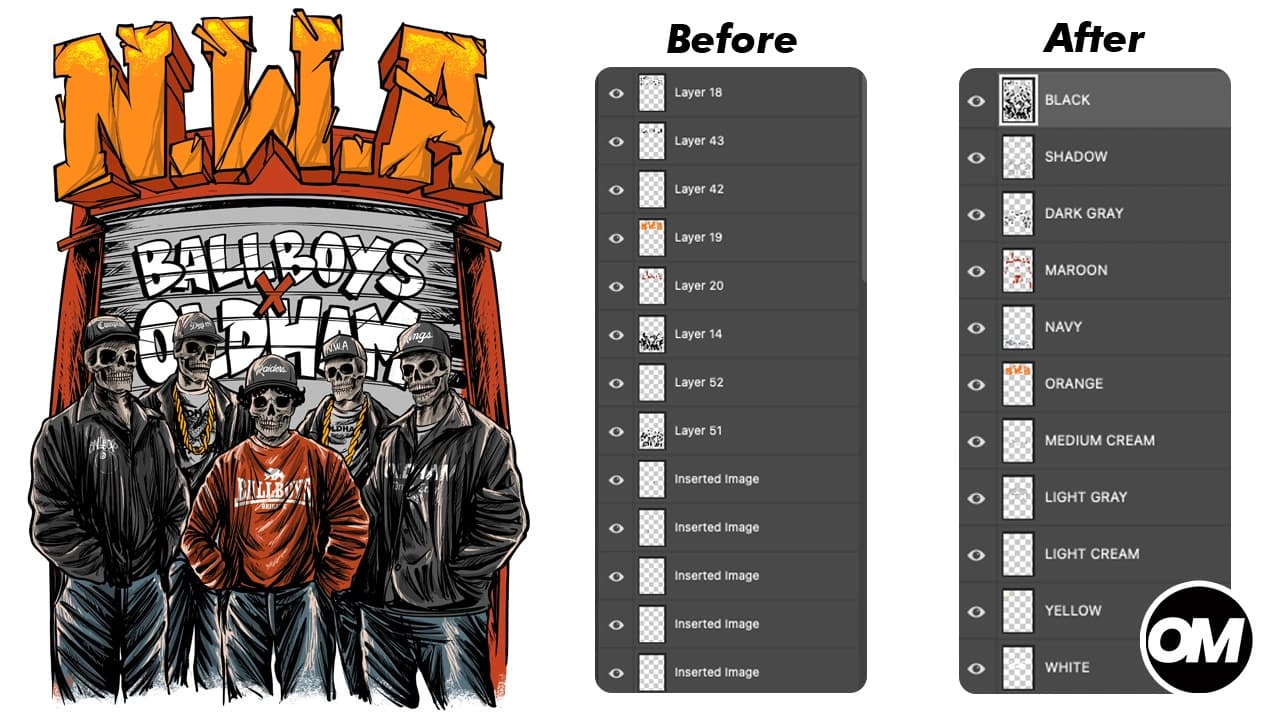
Getting a disorganized client file and needing to produce a clean screen printing separation is one of the most common — and most frustrating — problems in the industry. Duplicate colors, overlapping pixels, layers stacked in random order. Before Layer Seps can do its job, the file needs to be in shape.
The problem is most clients don't think about that. They send what they have. A PSD from a freelancer, a file built in pieces over multiple revisions, artwork assembled from different sources — none of it was built with separation in mind. That's not a client problem. That's just how design files work in the real world.
OmniSeps has a built-in 4-step pipeline that handles exactly this. Each tool solves one specific problem, and they're designed to run in sequence. Follow this order and you'll go from a chaotic layered file to a fully separated, print-ready result — without touching the original artwork.
Before You Run the Pipeline
All four tools work with raster layers only. Before starting, check that your document contains none of the following:
These layer types block the entire operation — the tool stops and asks you to fix them first:
- Vector / path layers
- Shape layers
- Solid Color fill layers
- Text layers
- Gradient layers
- Pattern layers
Rasterize any of these via Layer > Rasterize > Layer, then run the pipeline.
These layer types are automatically skipped — the tool continues without processing them:
- Locked layers
- Group / LayerSet layers
- Empty layers (zero pixel area)
The 4-Step Pipeline
Here's the correct order every time:
- Knockout — remove pixel collisions between layers
- Merge Color — consolidate duplicate color layers
- Sort Bright — reorder layers from light to dark
- Layer Seps — full separation with spot channels, trapping, and knockout
Each step builds on the previous one. Skipping or reordering them produces incorrect results. Run them in this sequence and the output is clean every time.
What Happens When You Skip the Pipeline
Most separation errors don't come from Layer Seps — they come from what goes into it. Layer Seps does exactly what it's told. If the file it receives has pixel collisions, it separates colliding pixels. If it has duplicate color layers, it creates duplicate spot channels. If layers are in the wrong order, the knockout goes in the wrong direction.
The pipeline exists so that by the time Layer Seps runs, there's nothing wrong with the file. Clean input, clean output.
Step 1: Knockout — Remove Pixel Overlap
The most common problem in client files is pixel collision — two or more layers that share overlapping pixels in the same area. This happens constantly in files built without separation in mind. A designer adds a shadow on one layer, a base color on another, and they share pixels where they meet. Sometimes the overlap is intentional in the design but wrong for print. Sometimes it's just sloppiness.
When two layers share pixels and both go to press, colors bleed into each other and edges become undefined. The print looks muddy where it should be clean.
Knockout solves this by trimming away any pixel area on each layer that overlaps with another layer. After Knockout runs, every pixel in the document belongs to exactly one layer. No double-coverage, no edge bleed, no ambiguity about which ink goes where.
This is the mandatory first step. Layer Seps relies on clean, non-overlapping layers to calculate trapping and knockout correctly. Send a file with pixel collisions into Layer Seps and the separation will carry those errors all the way to film.
Requirements: All layers must be rasterized. The document must have at least 2 layers.
Step 2: Merge Color — Consolidate Duplicate Layers
Client files often arrive with the same color split across multiple layers. A shadow here, a highlight there, a detail element somewhere else — all technically the same ink color, all on separate layers. It happens when designers build files across multiple sessions, copy-paste from other documents, or simply don't clean up after themselves.
Left as-is, Layer Seps would create a separate spot channel for each one. A job with 6 actual ink colors could generate 10 or 12 channels — bloated, redundant, and a problem for whoever's burning screens.
Merge Color detects the actual color of each layer visually, groups layers that share the same or similar color, and merges each group into a single layer. One color, one layer, one spot channel. That's what Layer Seps expects and what your press needs.
This step works from the actual color data in each layer — not the layer name. Doesn't matter if layers are named inconsistently, generically, or not at all. The color is what gets matched.
Step 3: Sort Bright — Order Layers by Luminance
Screen printing ink order is not optional. Light inks go down first, dark inks last. This is how the physics of ink on dark garments works — put a dark ink down first and the lighter ink on top won't cover it properly. The whole print shifts.
Most client files have layers in whatever order the designer stacked them. That's usually not the right print order.
Sort Bright automatically reorders every layer from brightest to darkest using luminance — the same brightness formula used in professional color science. One click and the layer stack is in the correct print sequence: white and light colors at the bottom, black and dark colors at the top.
No manual dragging, no guessing, no checking each layer individually. It's done.
Step 4: Layer Seps — Full Separation
With clean, consolidated, and correctly ordered layers, Layer Seps runs the full separation without any ambiguity. It reads each layer, creates a dedicated spot channel for each ink color, applies trapping to ensure solid edges between colors, and knocks out each color from the layers beneath it so inks don't stack on press.
The final output includes:
- Individual spot channels for every ink color
- A MERGED composite layer showing the full combined result
- A T-Shirt Color channel for garment preview
- Auto-trapping applied to all edges
Print-ready. No cleanup required.
Read the full Layer Seps guide — Color Separation for Vector, Raster, or Both →
Why the Order Matters
Each step depends on the previous one being done correctly.
Knockout before Merge Color — if layers still overlap, color detection reads blended pixel values from neighboring layers and groups the wrong colors together.
Merge Color before Sort Bright — if duplicates haven't been consolidated, Sort Bright sorts them individually, leaving the stack fragmented instead of organized.
Sort Bright before Layer Seps — Layer Seps uses the layer order to determine knockout direction. Wrong order means lighter inks knock out from darker ones — the opposite of what you want.
The sequence is: Knockout → Merge Color → Sort Bright → Layer Seps. In that order, every time.
Frequently Asked Questions
Do I need to run all 4 steps every time?
Not necessarily. If your file is already clean — no overlapping pixels, no duplicate colors, layers already sorted — you can go straight to Layer Seps. The pipeline is for messy client files where those conditions aren't guaranteed.
What kind of files is this pipeline designed for?
Any layered Photoshop file where layers represent separate ink colors. Standard starting point for screen printing separations on dark garments.
What does a "messy" file actually look like?
Overlapping pixels between layers, multiple layers with the same ink color, layers stacked in no particular order. It's the default state of most client-supplied PSDs that weren't built for separation.
Can I use this with vector designs?
Layer Seps supports both raster and vector layers and can mix them. However, Knockout and Merge Color require rasterized layers. Rasterize any vector layers first before running the pipeline.
What happens if a layer has no detectable color?
Merge Color leaves it as a standalone layer — it won't be merged with anything. It'll still be processed by Layer Seps normally.
Is there a layer limit?
Layer Seps has no layer limit. 4 colors or 24, the pipeline handles it.
What's the difference between running the pipeline and just running Layer Seps directly?
Layer Seps separates whatever you give it. If the file has problems, the separation has problems. The pipeline is how you guarantee the input is clean before Layer Seps runs — and clean input is what produces clean film.
Try OmniSeps free for 15 days
Automatic color separation for Photoshop & Illustrator. No credit card required.
Claim Free TrialRelated articles
Color Separation for Screen Printing — Works With Vector, Raster, or Both
Automatic color separation for screen printing in Photoshop. Works with vector, raster, or mixed layers — with built-in ink order sorting and auto trapping.
Manual Color Separation in OmniSeps — Full Control, One Color at a Time
Learn when and how to use OmniSeps Manual Color Separation — the precision tool for vector plus raster workflows and supplementing S1 separations with missing color detail.
CMYK Separation with GCR Method — How OmniSeps Omni CMYK Works
Learn how OmniSeps Omni CMYK separates full-color artwork into 7 press-ready channels using the GCR method — including underbase white and highlight — directly in Photoshop.
OmniSeps — The Modern Screen Printing Separation Plugin for Photoshop
OmniSeps is a modern Photoshop separation plugin built on UXP — fast, always auto-updated, and covering the full screen printing workflow from vector separation to CMYK, simulated process, grayscale, and DTF halftone.