
How to Spot Color for Screen Printing Using OmniChange
OmniChange is the spot color preprocessing tool that prepares your Illustrator vector design for screen printing separation in OmniSeps — automatically, accurately, no guesswork.
8 Mei 2026
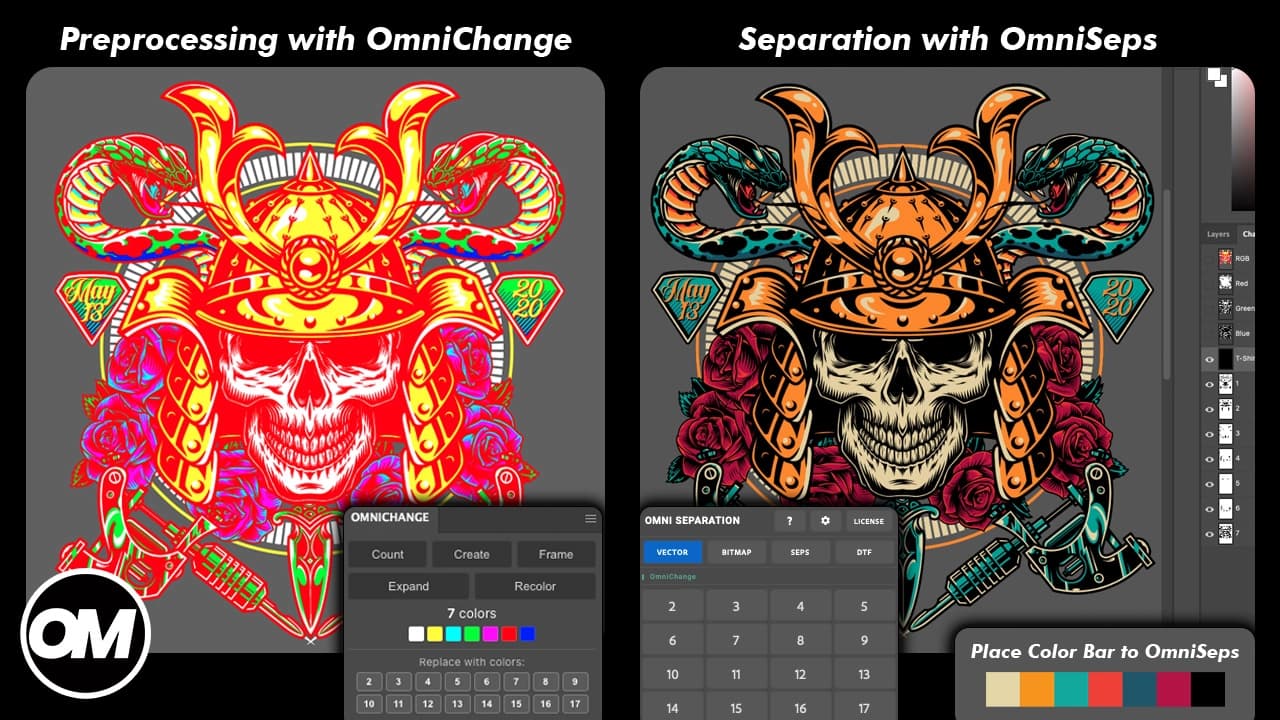
Getting spot colors right is one of the most critical steps in screen printing. Pick the wrong colors, skip a preparation step, or send an unprepared file to Photoshop — and your entire separation falls apart before it even starts.
OmniChange was built specifically to solve this. It’s not a general-purpose design tool. It’s a spot color preprocessor for Illustrator, built from the ground up to prepare your vector design for screen printing separation in OmniSeps.
What Is Spot Color Preprocessing?
Before OmniSeps can separate a design into print-ready spot channels, it needs one thing: accurate color information. Which color goes where. Which ink prints first. How the colors relate to each other.
Without proper preprocessing, that information either doesn’t exist or isn’t formatted in a way OmniSeps can read. You end up guessing, manually assigning colors, or correcting mistakes after the fact.
Preprocessing is the step that makes everything after it automatic. OmniChange handles that step entirely.
What OmniChange Does
OmniChange is an Illustrator extension that takes your vector design and prepares it for spot color separation. When you run OmniChange on your artwork, it:
- Reads every color in your vector design
- Sorts them automatically from lightest to darkest — the correct print order for screen printing
- Prepares a color bar that encodes the exact color information OmniSeps needs
- Keeps your design intact — no destructive changes to your artwork
The result is two things: your design ready to copy into Photoshop, and a color bar ready to export.
The Color Bar — and Why PNG at 100ppi Matters
The color bar is how OmniChange communicates with OmniSeps. It’s a strip that encodes the exact spot colors from your design in a format OmniSeps can read pixel by pixel.
There is one strict rule: export the color bar as a PNG at exactly 100ppi. Do not resize it.
OmniSeps reads the color bar pixel by pixel to identify each spot color. If the PNG is resized — even slightly — the pixel data shifts and OmniSeps assigns the wrong colors to your spot channels. Export at 100ppi, PNG format, unchanged.
The Full Workflow
Once OmniChange has done its job, the rest is straightforward:
In Illustrator:
Run OmniChange on your design → export the color bar as PNG at 100ppi
Into Photoshop:
Copy-paste your design directly from Illustrator into Photoshop → place the color bar (do not resize)
In OmniSeps:
Select the number of colors (up to 17) → OmniSeps reads the color bar → assigns each spot color automatically → runs the full separation
No manual color picking. No guessing ink order. No cleaning up after the fact.
Coming From CorelDraw?
CorelDraw is still widely used in screen printing shops. If your workflow starts in CorelDraw, you don’t need to abandon it — you just need one extra step.
Export your design from CorelDraw as a PDF, open it in Illustrator, and let OmniChange take it from there. Exporting as PDF keeps your objects clean and ready — no manual fixes needed before OmniChange can process the design.
The bigger concern for CorelDraw users is usually Illustrator itself feeling unfamiliar. That’s why OmniSeps includes OmniKeys — a keyboard shortcut set built for Illustrator that mirrors the shortcuts CorelDraw users already know. Most CorelDraw users are comfortable in Illustrator within 7 to 15 days with OmniKeys installed.
Ready to Start?
OmniChange is part of the OmniSeps ecosystem — a complete screen printing workflow built inside Illustrator and Photoshop. If you’re doing spot color separation, this is where it starts.
FAQ
What is OmniChange used for?
OmniChange is a spot color preprocessor for Illustrator. It prepares your vector design — sorting colors, building the color bar — so OmniSeps can run an accurate automated separation in Photoshop.
Why does the color bar need to be exported as PNG at 100ppi?
OmniSeps reads the color bar pixel by pixel to identify each spot color. The PNG must be at exactly 100ppi with no resizing — any change to the pixel data causes incorrect color assignment.
How many colors can OmniChange prepare for OmniSeps?
The OmniSeps Vector tab supports up to 17 spot colors from an OmniChange workflow.
Can I use OmniChange if I design in CorelDraw?
Yes. Export your design from CorelDraw as a PDF, open it in Illustrator, and run OmniChange as normal. PDF keeps your objects clean without needing manual fixes. Use OmniKeys for familiar shortcuts — most users adapt within 7 to 15 days.
Does OmniChange change my original artwork?
No. OmniChange prepares the color information and generates the color bar without modifying your original vector design.
Try OmniSeps free for 15 days
Automatic color separation for Photoshop & Illustrator. No credit card required.
Claim Free TrialRelated articles
Color Separation for Screen Printing — Works With Vector, Raster, or Both
Automatic color separation for screen printing in Photoshop. Works with vector, raster, or mixed layers — with built-in ink order sorting and auto trapping.
Simulated Process Screen Printing Separation — S1 and S2 in OmniSeps
One click and your full simulated process separation is built automatically. S1 for standard color range, S2 for extended palette with warm tones and skin tones. Fine-tune per channel with built-in adjustment tools.
OmniSeps — The Modern Screen Printing Separation Plugin for Photoshop
OmniSeps is a modern Photoshop separation plugin built on UXP — fast, always auto-updated, and covering the full screen printing workflow from vector separation to CMYK, simulated process, grayscale, and DTF halftone.
Grayscale Screen Printing Separation — Grayscale 1 and Grayscale 2 in OmniSeps
Learn how OmniSeps Grayscale 1 and Grayscale 2 separate artwork by luminance into standardized gray ink channels — and when to choose 6 channels vs 8 for smoother tonal reproduction.